

Samsung Print Service Plugin
HP Inc.
I noticed Samsung Print Service Plugin because it takes a usually annoying Android task and places it close to where I already work: inside the app that contains the document, photo, email, or web page I want to print. It is a free productivity app from HP Inc., despite the Samsung name, and its purpose is straightforward: help an Android device send print jobs to compatible printers from different brands.
That simple role is also the reason I think it deserves a more careful look than a quick “install and forget” recommendation. A print service can sit between several kinds of personal content and a physical printer, so convenience is only part of the question. I wanted to know how much control I had before sending a job, where the app fit into normal Android printing, and whether it made sense for occasional home use or a busier shared environment.
My overall impression is practical rather than exciting. This is not an app I open for long sessions; it is a background-style utility that becomes visible when I need a hard copy. When it works with the printer already available to me, the process feels much cleaner than exporting a file, opening a separate printer utility, and repeating the setup there. When compatibility or printer discovery becomes complicated, its narrow design leaves me wanting more guidance.
How the printing experience feels in everyday use
A useful bridge between Android apps and a printer
The most valuable part of the plugin is its position in the Android printing workflow. Instead of treating printing as a separate destination, I can begin in the app where the content lives and look for the system print action. That matters when I am working with a document, a message attachment, a boarding pass, a recipe, or a photo that I do not want to move through several apps first.
In a realistic home scenario, I might receive a PDF by email and need a paper copy for a meeting. With a conventional printer utility, I may have to save the file, locate it in storage, choose the manufacturer’s app, and then find the document again. The plugin can make that chain shorter by presenting printing as part of the Android sharing or document workflow. The exact path still depends on the app holding the file, but the concept is much less disruptive.
Latest News

Uber Eats Under Pressure: What Happens When Delivery Goes Wrong

How QR & Barcode Scanner Adapts to Android and iOS Innovations

Why Waze Navigation & Live Traffic Is Your Essential Travel Companion

CapCut Mastery: Unleash Hidden Features for Pro-Level Editing

How OS Updates Enhance Roblox Adventures

Teacher Simulator: Exam Time Turns Quick Classroom Judgments into a Repetitive Loop
I also like that the service is not limited to one obvious type of content. Its store summary describes printing from favorite apps to printers from any brand, which makes it more useful than a tool designed only around a particular document folder. In practice, the important question is not whether the source app has a familiar “print” icon, but whether that app exposes Android’s printing options. If it does not, the plugin cannot magically add a print command to an interface that never offers one.
That distinction prevents a common misunderstanding. Installing the service does not turn every Android screen into a printable page with perfect formatting. A web page may print differently from its phone view, a protected document may restrict sharing or printing, and a photo app may provide its own output controls. I see the plugin as a connection layer, not as a universal layout editor.
What I check before sending a job
My first habit is to preview the job carefully rather than tapping the final print command immediately. The preview is where I look for clipped margins, an unexpected page count, a sideways image, or a document that has reflowed badly. This is especially important with web pages and messages, where the screen layout is designed for scrolling rather than paper.
Gallery
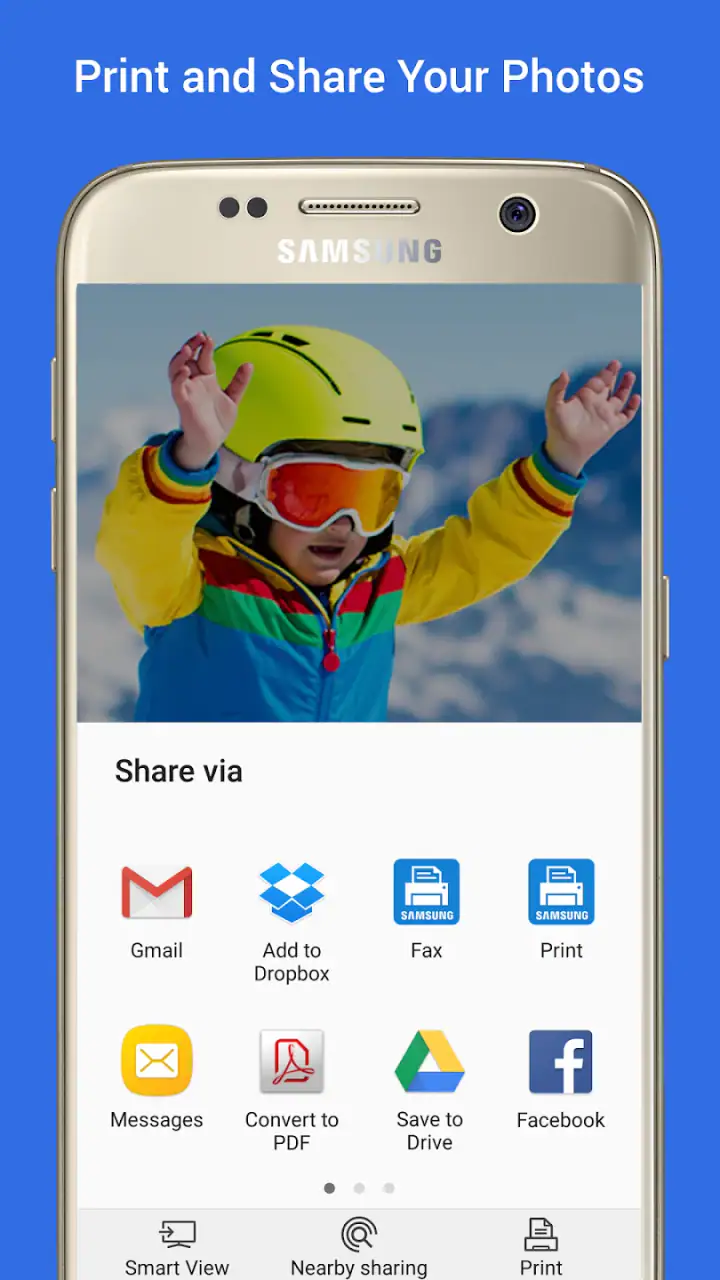
I also check the selected printer before confirming. In a home with one printer, this may seem unnecessary, but shared networks can expose more than one possible destination. A quick check avoids sending a personal document to a family member’s printer or to a machine that is out of paper. That is a small example of user agency: the convenience is useful only when I stay attentive at the last step.
For photos, I treat the print preview as a compromise rather than a guarantee of photographic quality. A phone image can have a different shape from common paper sizes, so cropping or empty borders may appear. If the image matters, I prefer preparing it first in a photo editor or gallery tool, choosing the crop deliberately, and only then invoking the print service. The plugin is not the place where I would expect detailed creative control.
For multi-page documents, I think about whether I need the entire file or only selected pages. Printing everything is easy to do accidentally, especially when the document is longer than expected. A careful review of the page range and copies can save paper and prevent a private appendix from being included. This is one of the less obvious trade-offs of a quick system-level print flow: fewer steps can also make it easier to overlook a setting.
Where the experience can become less smooth
The plugin’s usefulness depends on the relationship between Android, the printer, the network, and the source app. If the printer is asleep, connected to another network, unavailable to the phone, or not recognized as expected, the service cannot remove those underlying problems. I would first confirm that the phone and printer are using the intended network, then wake the printer and retry before assuming the app itself is broken.
Printer compatibility also deserves a realistic interpretation. Support for printers from different brands is convenient, but “any brand” should not be read as “every model behaves identically.” Different printers can expose different capabilities, and a generic service may not offer every manufacturer-specific option. Someone who needs specialized finishing, unusual media handling, or detailed device maintenance may get a richer experience from the printer maker’s dedicated app.
That is the central comparison for me. The plugin is better when I want a quick print action from an existing Android app and do not want another full management interface. A manufacturer’s app is often the better choice when I need device status, maintenance tools, scanning, ink or toner information, or model-specific controls. A cloud document service may be preferable for collaborative editing, while a direct computer workflow can be more predictable for complex office documents.
Trust starts with the app’s role
Because this service handles the handoff to a printer, I pay attention to when it becomes active and what I am actually asking it to do. Its role is much narrower than that of a social, shopping, or messaging app: I use it when I initiate a print action. That narrow purpose makes the permission and privacy conversation easier to frame, but it does not mean I should send sensitive material without thinking.
I do not treat a print preview as a privacy shield. A document containing medical information, financial details, passwords, or personal identification still becomes a physical object once I confirm the job. The printer may be in a shared room, and printed pages can remain in its output tray. My safest workflow is to use a printer I trust, stay nearby, and collect the pages immediately.
I also avoid printing from a public or unfamiliar network unless I understand where the job is going. A home printer and a workplace printer can have very different audiences. The app’s convenience should not replace the basic question, “Who can access the paper after it comes out?” That question is particularly important when Android presents several devices with similar names.
Controls I can see and decisions I should make
The most meaningful controls are the visible ones at the moment of printing: the destination, the preview, the number of copies, the page selection, and the available paper or layout choices. I use those controls as a final review rather than assuming the source app’s on-screen appearance will translate perfectly to paper.
I also keep Android’s own app-management screens in mind. If I no longer print from the phone, I can review whether the service is still useful to me and manage it through the operating system’s normal app settings. I prefer this kind of reversible choice to leaving every utility active simply because I installed it once. The service is most valuable when it matches a real printing habit.
For a shared device, I would be more deliberate. I would avoid printing private documents while another person is waiting near the printer, verify the destination every time, and consider whether a dedicated manufacturer workflow gives clearer device ownership. The plugin is convenient for a personal phone, but convenience does not automatically make it the best arrangement for a family tablet, office handset, or public kiosk.
I also want to be clear about accounts. A user deciding whether to install it should look at the Android setup and the choices shown during actual use, rather than assuming that a print service needs a separate account for every job. I value workflows that let me make the printing decision at the moment I need it. If a particular environment asks for additional sign-in or administrative approval, that is a reason to examine the prompt carefully before proceeding, not a step to accept automatically.
How I handle sensitive documents
My approach changes depending on the content. For a shopping list or a recipe, I care mostly about reliability and paper use. For a résumé, school record, invoice, or travel document, I check the destination and page range twice. I also avoid leaving the source file open in a shared environment after printing, especially if the phone is about to be handed to someone else.
Printing can create more copies than people expect. There is the original file on the phone, the temporary view used by the source app, and the paper output. I do not assume that deleting the paper or closing the app solves every privacy concern, but I do make a point of clearing the physical pages from the printer and returning to the source app’s normal document controls afterward.
Another useful habit is to test with harmless content when setting up a new printer. A blank or non-sensitive page lets me confirm that the correct device appears and that the paper orientation looks right. This avoids using a confidential document as the first experiment. It is a small step, but it gives me more confidence in the workflow without requiring a complicated setup session.
For workplaces, I would follow the organization’s printing rules instead of treating the plugin as a workaround. An office may have approved printers, retention practices, or restrictions on personal devices. The app can provide the technical route to a printer, but it cannot tell me whether that route is permitted or appropriate for a particular document.
Details that matter more than the download button
The app is free, which removes the usual cost barrier for trying it. That does not mean printing itself is free: paper, ink or toner, electricity, and failed pages still matter. I judge the app by whether it reduces wasted steps and misprints, not by expecting it to solve the cost of physical output.
Its age rating is Everyone, which fits the basic function of sending ordinary content to a printer. Still, an age label is not a substitute for supervision around sensitive documents or expensive print jobs. A child can understand a print button while not understanding why printing a long document or repeatedly sending a job has consequences.
The developer shown for this app is HP Inc., while the product name emphasizes Samsung. That combination may make some people pause, especially if they associate the name with a specific printer family. I would focus less on the branding and more on whether Android detects the printer I actually own and whether the available options meet my needs. The practical test is compatibility and control, not the logo alone.
The current version is 3.12.260420. I mention that because version details can matter when troubleshooting: if the interface on my phone looks different from an older guide, I would avoid assuming that every step is still identical. I would start with the current Android print flow, check the plugin’s enabled state, and only then look for device-specific help.
Who will get the most from it
I think this is a good fit for someone who prints from an Android phone often enough to resent file transfers but not so often that they need a full printer-management suite. Students printing assignments, families printing forms, and home users producing occasional travel documents are the clearest examples. The service earns its place when the source content is already on the phone and the printer is reasonably accessible.
It is also useful for people who switch between apps. If I receive a document in one app, view a page in another, and occasionally print an image from a third, a system-level service is more convenient than remembering three separate manufacturer workflows. That flexibility is the feature I notice most in normal use.
I would be more cautious about recommending it as the only tool for a small business or a print-heavy office. Those users may need reliable queues, device administration, auditing, advanced finishing, or clear separation between personal and work documents. A dedicated office printing system or the printer manufacturer’s software may provide better control, even if it feels less lightweight.
I would also skip it if I almost never print from my phone and already have a smooth computer-based routine. Installing another service for one occasional page may not be worthwhile. Likewise, if my printer requires specialized functions that are absent from a generic Android print path, the official companion app is likely the more sensible choice.
What the popularity tells me—and what it does not
The app has a 3.7 average from around 468 thousand ratings and over 1 billion installs. Those figures tell me that it has broad reach and is familiar to a very large Android audience. They do not tell me whether it will discover my particular printer, behave the same way on my phone, or expose the settings I need.
I see the 9.1 thousand written reviews as a reminder to read individual experiences carefully rather than treating the average as a verdict. Printing problems often involve several layers at once: the phone, the source app, the network, the printer firmware, and the paper settings. A complaint that sounds like an app failure may actually reveal a compatibility edge case, while a positive review may describe a much simpler setup than mine.
For that reason, I would install it with a low-risk test document first. I would not begin with a confidential form, a large batch, or an expensive photo. If the basic path works, I can then decide whether it is dependable enough for more important jobs. This trial approach gives the rating useful context without asking it to make the decision for me.
My cautious recommendation
After using it as a practical Android print bridge, I see Samsung Print Service Plugin as a worthwhile first option for straightforward mobile printing. Its strongest quality is not a long list of visible features; it is the reduction of friction between the app I am already using and the printer I want to reach. For ordinary documents and occasional photos, that can be enough to make printing feel normal again.
My recommendation comes with a clear boundary. I would use it when I can verify the printer, review the job, and stay in control of the paper afterward. I would choose a manufacturer-specific app when I need model-specific maintenance or richer controls, and I would choose a more managed office solution when privacy, auditing, or high-volume reliability matters more than simplicity.
The best way to decide is to treat the first print as a compatibility and trust check. Use harmless content, confirm the destination, inspect the preview, and watch what choices Android presents before sending anything personal. If that process feels clear and the printer responds reliably, the plugin is an efficient free addition to a productivity setup. If the destination is unclear or the available controls are too limited, moving to another printing method is the more responsible choice.
In short, I recommend it to Android users who want a direct route from everyday apps to a printer and who are comfortable making the final decisions themselves. I would not present it as a complete answer to every printing problem. Its value is strongest in the middle ground: simple enough for home use, broad enough to support different printer brands, and useful precisely because it stays close to the normal Android workflow.
FAQs for Samsung Print Service Plugin
What is the Samsung Print Service Plugin?
The Samsung Print Service Plugin is an app designed to enable seamless printing from your Android device. By integrating with your phone's operating system, it allows you to print documents, photos, and web pages directly to compatible printers. It supports a wide range of printers, making it versatile for both home and office use.
How do I set up the Samsung Print Service Plugin on my device?
To set up the Samsung Print Service Plugin, first download and install the app from the Google Play Store. Once installed, ensure your device is connected to the same Wi-Fi network as your printer. Open the app and follow the on-screen instructions to connect your printer and start printing.
Is the Samsung Print Service Plugin compatible with all printers?
While the Samsung Print Service Plugin supports a wide range of printers, not all models may be compatible. It generally works best with Samsung printers and many other brands that support the Mopria Print Service standard. Check your printer’s specifications or the app’s compatibility list for more details.
Does using the Samsung Print Service Plugin require an internet connection?
An internet connection is not strictly necessary for the Samsung Print Service Plugin. However, your Android device and printer must be connected to the same local network. This is typically achieved through Wi-Fi, allowing your device to communicate directly with the printer for seamless printing.
Are there any costs associated with using the Samsung Print Service Plugin?
The Samsung Print Service Plugin is free to download and use. There are no subscription fees or hidden charges. However, keep in mind that regular printing costs, such as ink and paper, still apply when you use the app to print documents or images.
Pros
- Easy integration with Samsung printers.
- Supports a wide range of file formats.
- Automatic printer detection feature.
- User-friendly interface for quick setup.
- Regular updates enhance functionality.
Cons
- Limited features with non-Samsung printers.
- Requires Android 4.4 or higher.
- No advanced editing options.
- May slow down older devices.
- In-app ads can be intrusive at times.


